Within Business Central, there are multiple defaults and rules that can be applied to ensure end users can perform their work efficiently and accurately. Included in that list are Dimension Combinations.
Dimension Combinations help provide additional accuracy when dealing with Dimensions. In a nutshell, they prevent you from combining Dimensions that don’t belong together and from posting something that doesn’t belong where you are attempting to put it.
Setting Up Dimension Combinations
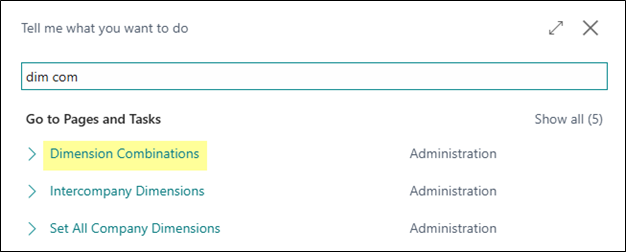
Navigate to Dimension Combinations
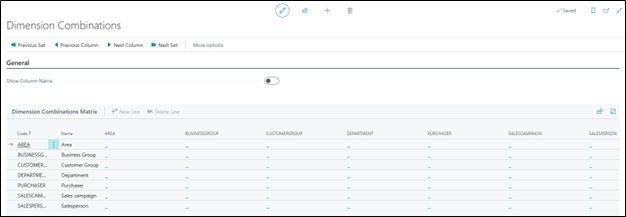
In the Dimension Combinations window, you will see all Dimensions listed both in rows and columns. If your organization has more than the standard 8 Dimensions, fear not! Those Dimensions will still be available for determining combination rules even though they may not be visible on Lines.
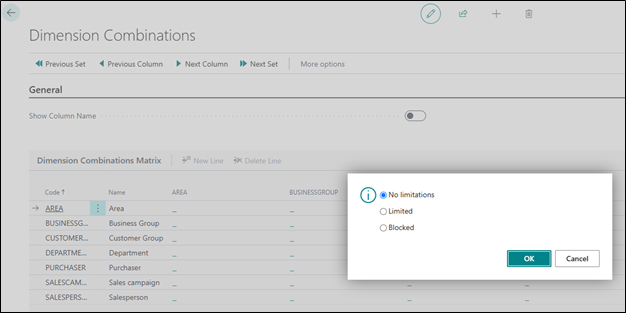
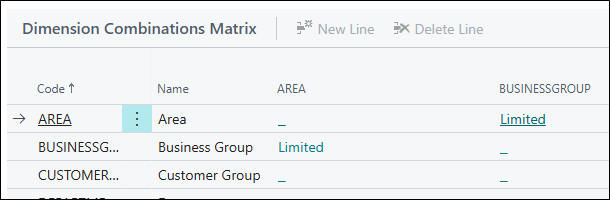
For each combination (other than where row and column are equal), you can access the settings by clicking into the field. Three settings exist for each combination:No Limitations, Limited, and Blocked.
No Limitations
This is the default setting. The Dimension Combination is always allowed. This means that all combinations of Dimension Values for the row and column are allowed on entries.
Limited
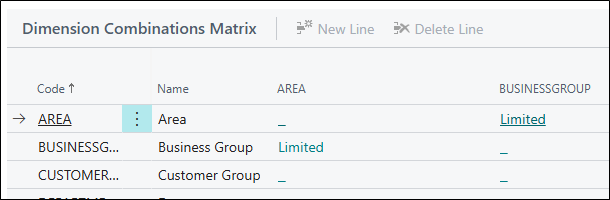
The Dimension Combination is only allowed under certain circumstances. This means that not every Dimension Value for the row can be combined with the column. Limited combinations are set by the user. Once the Limited setting is selected in the settings window, it will appear in the field.
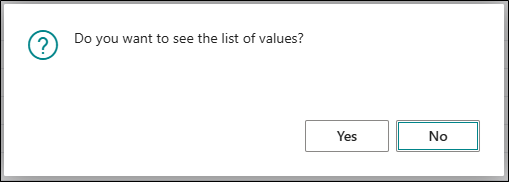
To block specific Dimension Value combinations, you’ll need to click into the field again and then select ‘Yes’ to the pop-up.
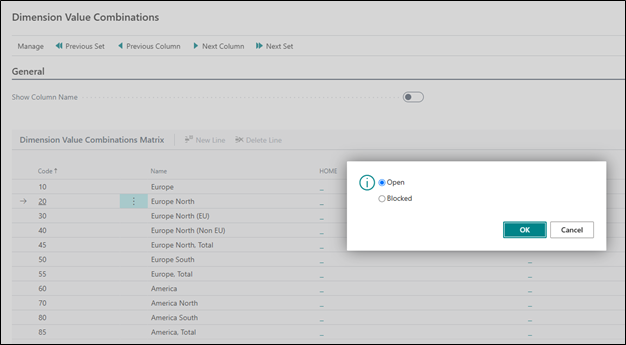
Listed are all combinations of Dimension Values for the specified Dimension combination. Click into a combination to set the default setting as Open or Blocked.
Open is the default setting and is also achieved by leaving the field blank. This means the Dimension Value Combination is always allowed.
Blocked means the selected Dimension Value Combination is never allowed.
Blocked
The Dimension Combination is never allowed. This means that no combinations of Dimension Values for the row and column are allowed on entries.
Looking back at our Dimension Combination Matrix, we see that AREA and BUSINESSGROUP is a Limited combination.
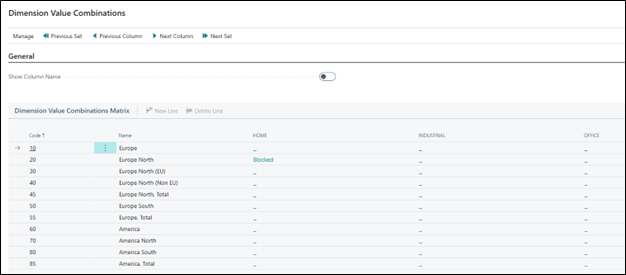
Upon drilling down to the Dimension Value Combination Matrix, we see that Europe North and HOME is the only blocked combination. This means that no entries with a BUSINESSGROUP value of HOME and an AREA value of Europe North will be allowed, but all other combinations of AREA and BUSINESSGROUP values will be allowed.
Wrapping Up
Implementing Dimension Combinations in Microsoft Dynamics 365 Business Central is a powerful strategy to enhance data accuracy and integrity. By configuring rules that define which dimension combinations are permissible, limited, or blocked, organizations can prevent invalid or unintended data entries. This proactive approach ensures that only appropriate dimension values are paired, thereby maintaining consistency and reliability in financial reporting. Regularly updating these combinations, especially when new dimension values are introduced, is crucial for sustaining optimal system performance and data accuracy.